
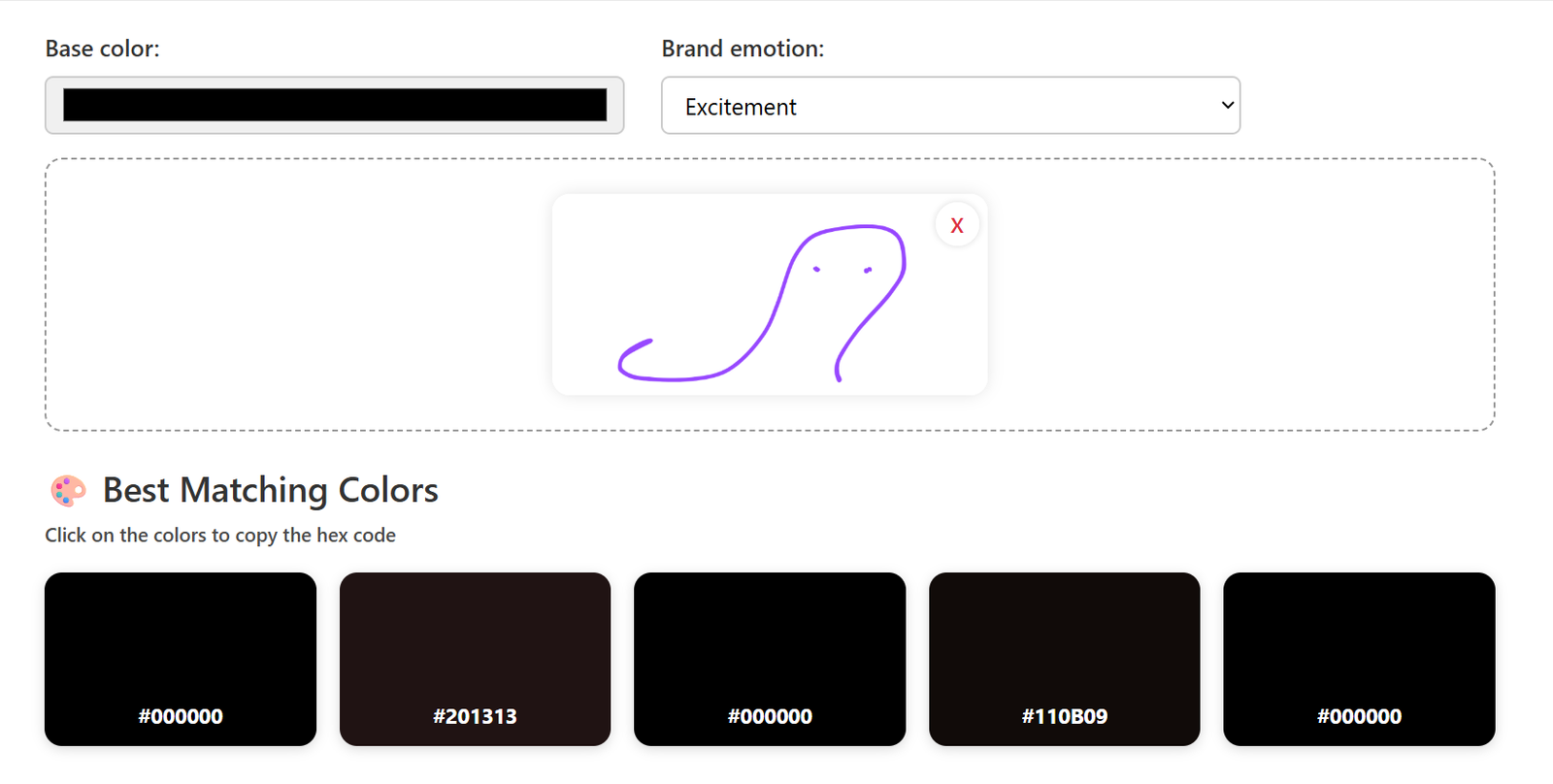
Reason: The logo image you uploaded is either too small or has excessive white space. This confuses our algorithm when trying to detect the dominant color of your logo.
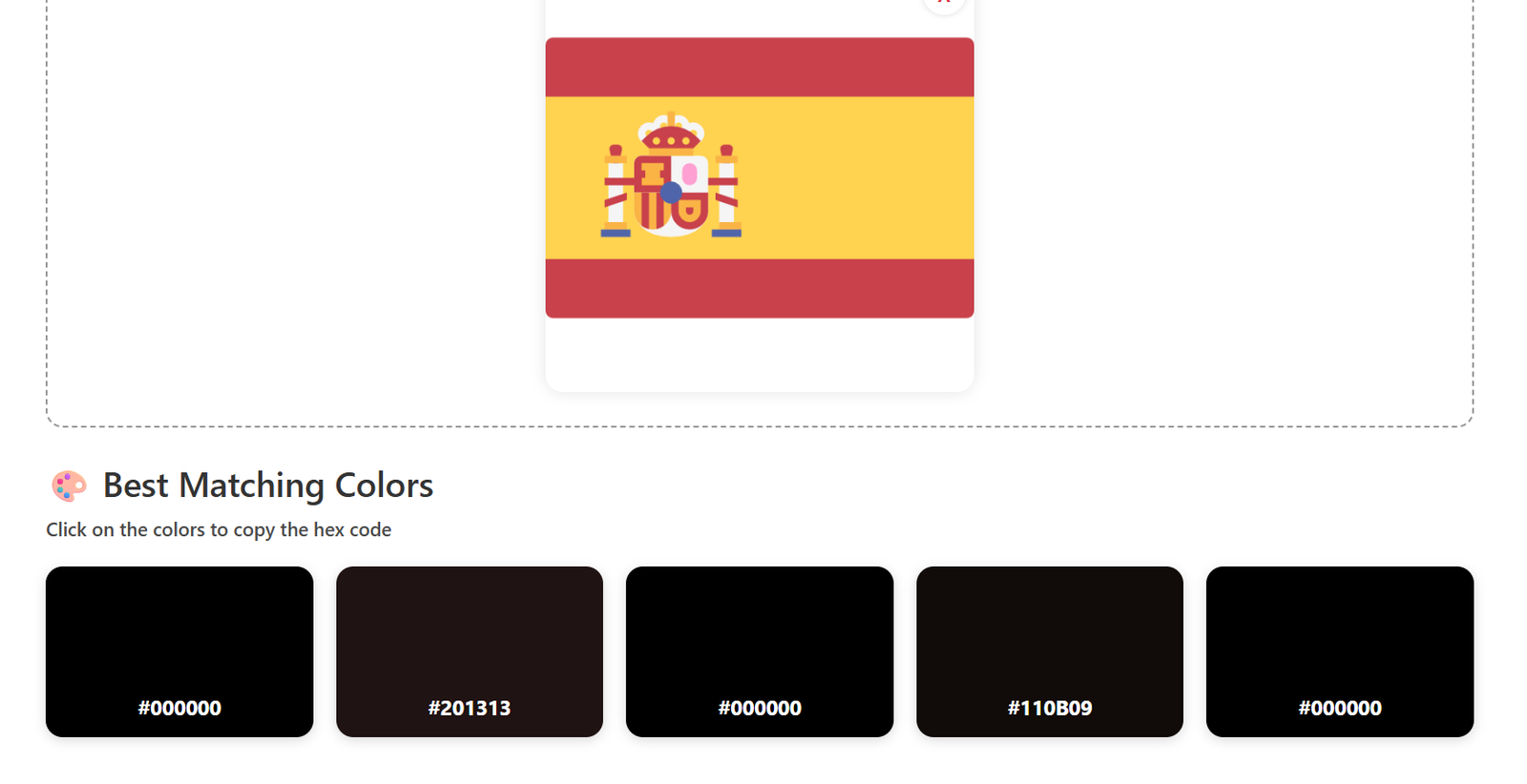
Reason: Your logo has 2–3 main colors or strong background interference. Our system is designed to extract one dominant color that stands out clearly.
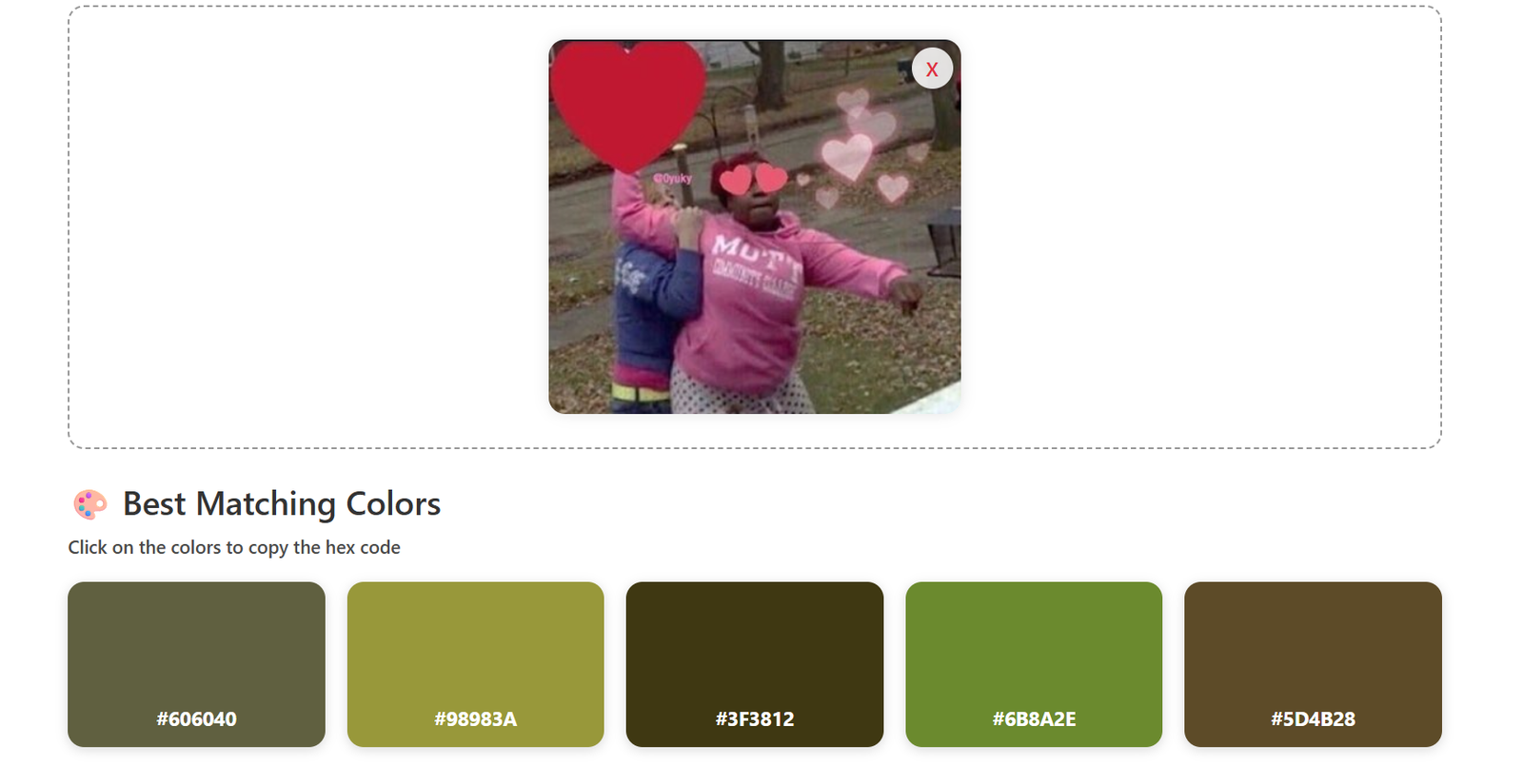
Reason: Sometimes, a background color is picked as the base. This is because the algorithm detects the most consistent and visible color by pixel size or image area.
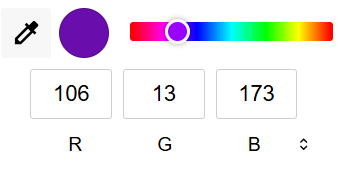
You can enter a custom hex color or pick one directly from your image.
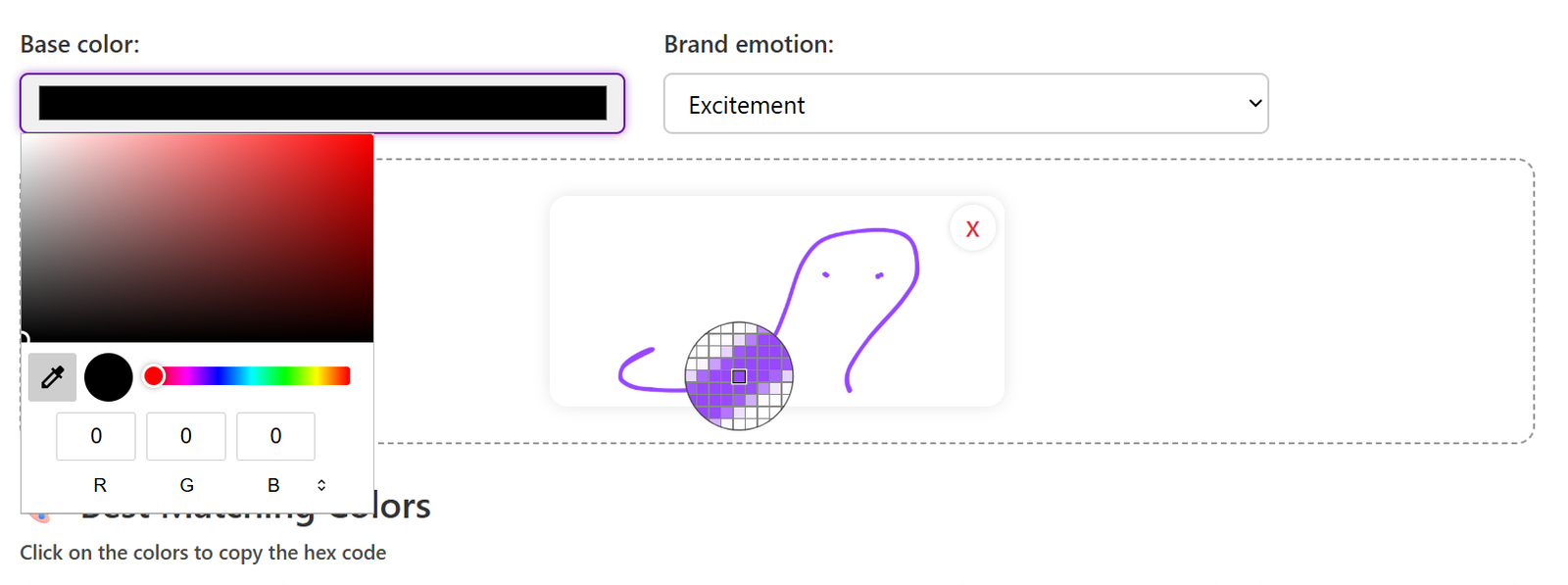
You've successfully selected your base color, and PicoColor will generate the perfect matching palette for you!
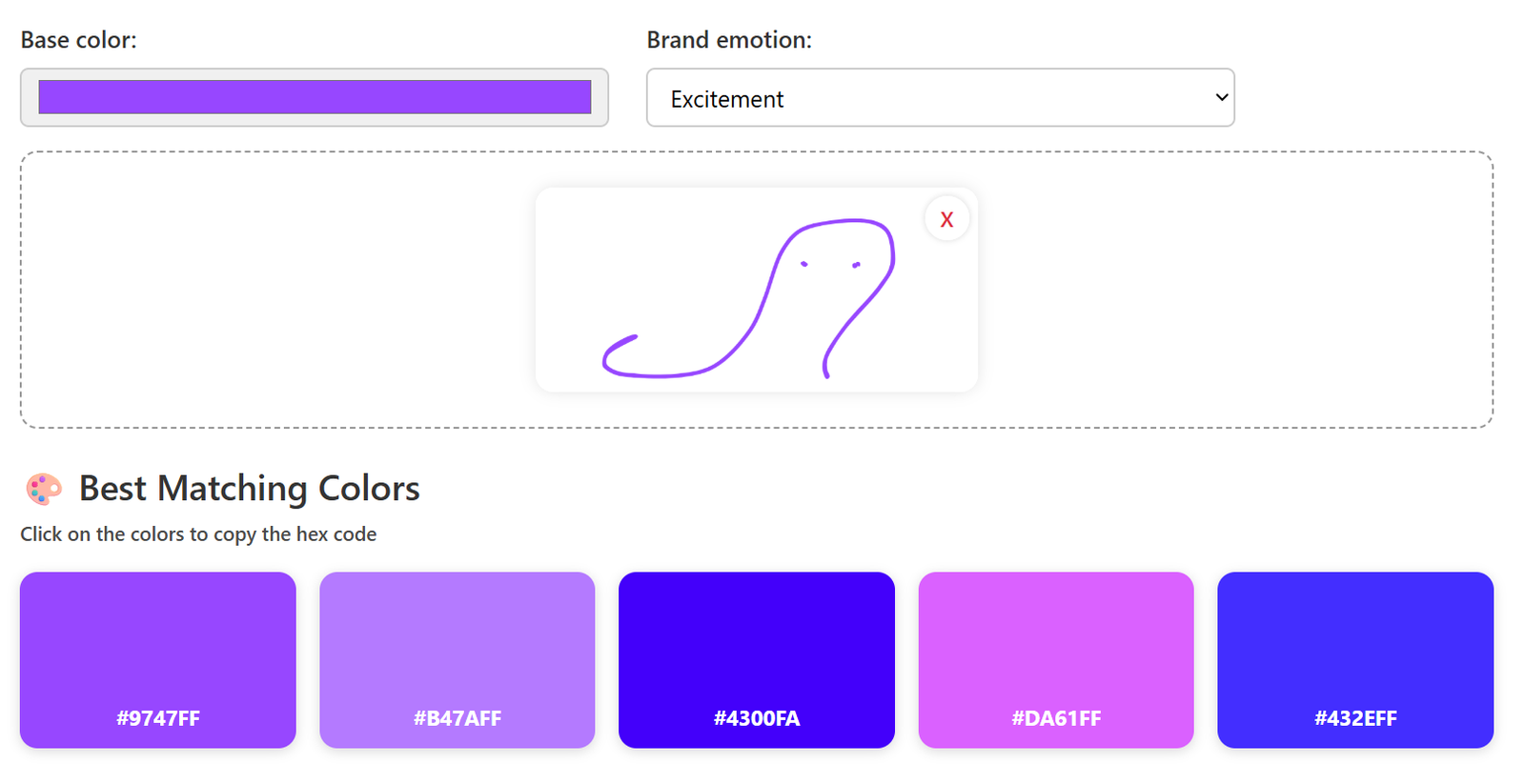
If you're not happy with the result, just repeat the steps — it only takes a few clicks.